Build a customer-facing assistant with Inkeep Unified Search
Copy page
Step-by-step tutorial to build an AI assistant that answers your customers' questions, grounded in your knowledge base via Inkeep Unified Search.
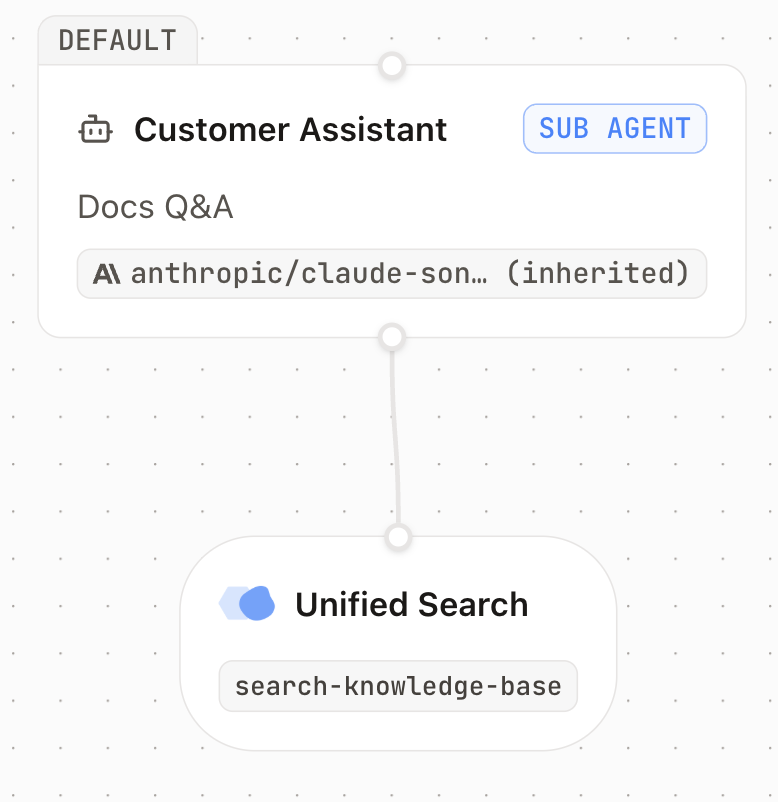
Overview
In this tutorial, you'll build a customer-facing AI assistant in the Inkeep Visual Builder. When a customer asks a question about your product, the agent will:
- Search your knowledge base via Inkeep Unified Search
- Answer in plain language, grounded in what your docs actually say
Prerequisites
- Access to Inkeep Enterprise — schedule a demo if you don't have it yet
- An Inkeep account with Inkeep Unified Search configured for your product (knowledge base, docs, sources connected)
Create the agent
In the Visual Builder, go to the Agents tab in the left sidebar and click Create agent.
Click the Default Sub Agent on the canvas to configure it. Fill in:
- Name:
Customer assistant - Prompt: Paste the prompt below
- Base model: Leave the inherited default (e.g., Claude Sonnet 4.5) unless you have a specific reason to change it.
Prompt:
Replace [Your Product] with the name of the product the assistant represents.
Connect Inkeep Unified Search via MCP
Your agent now needs the ability to actually search your knowledge base. Inkeep Unified Search is exposed as an MCP server you can connect to — once wired up, the agent can call search-knowledge-base to ground its answers in your real content.
You'll do this in three parts:
- Get an API key from your Inkeep Portal
- Save the API key as a Credential in the Visual Builder
- Register the Unified Search MCP server in the Visual Builder, then attach it to your agent
Get an API key from your Inkeep Portal
Log in to your Inkeep Portal and select your project.
Click Assistants in the left sidebar, then Create assistant → API (Server-side).
Name the assistant something memorable (e.g., customer-assistant) — make a note of the name, you'll need it to construct the MCP URL in a later step. Then copy the API key shown after creation.
Save the API key as a Credential
Back in the Visual Builder, click Credentials in the left sidebar, then New Credential.
Choose the Bearer authentication option and fill in:
- Name: A memorable name (e.g.,
inkeep-unified-search) - API key: Paste the API key you copied from the Portal
- Headers (optional): Leave blank
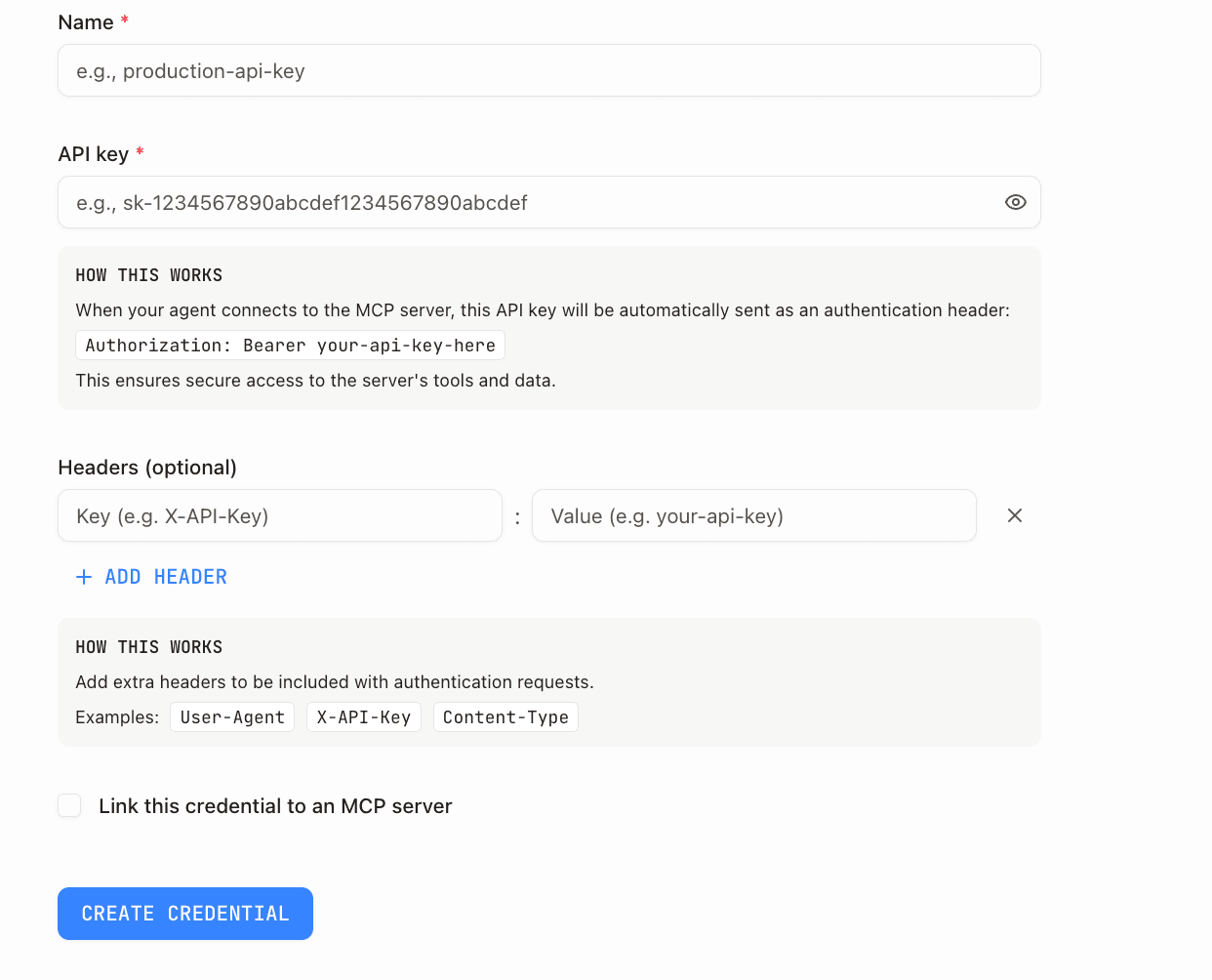
Click Create Credential.
Register the MCP server and attach it to your agent
Click MCP Servers in the left sidebar, then New MCP Server → Custom Server.
Fill in:
- Name:
Inkeep Unified Search - URL:
https://mcp.cloud.inkeep.com/<your-assistant-name>/mcp— replace<your-assistant-name>with the name you gave the assistant in the Portal (e.g.,customer-assistant→https://mcp.cloud.inkeep.com/customer-assistant/mcp) - Credential: Select the credential you just created
Click Create.
Go back to your agent canvas: Agents → Customer assistant.
Drag and drop an MCP block from the top left toolbar onto the canvas. Select Inkeep Unified Search and connect it to your sub agent.
Click Save Changes in the top right corner.
Test your agent
Click Try it in the top right corner to open the chat interface.
Ask a product question your docs should be able to answer — for example, "How do I get started?" or "What are the main features?"
When working correctly, the agent will search your knowledge base and answer grounded in what it finds. If the docs don't cover the question, it will say so rather than guess.
Next steps
You now have a working customer assistant grounded in your knowledge base.
- Add citations — let customers verify each answer at the source with inline footnotes and source cards.
- Add human escalation — when the agent can't help, hand off to a human via a support ticket with full conversation context.