Test Suites
Copy page
Build fixed test cases, run agents against them, and evaluate outputs using test suites in the Visual Builder
A test suite is a named collection of items: each item supplies the messages sent to an agent (the input) and optionally the expected output you want to compare against. In the Visual Builder, test suites appear under Test Suites in the project sidebar.
Test suite runs execute those items against one or more agents, create conversations from each item, and can attach evaluators to score the results.
When you start a run with evaluators selected, the platform also creates a batch evaluation job scoped to that run’s conversations.
Where to find test suites
- Open your project in the Visual Builder.
- In the project sidebar, choose Test Suites.
You need Edit permission on the project to create or change test suites, items, run configurations, and to start runs. See Access control.
Create a test suite
From the Test Suites list, create a new suite and give it a name. The suite is empty until you add items.
Test suite items
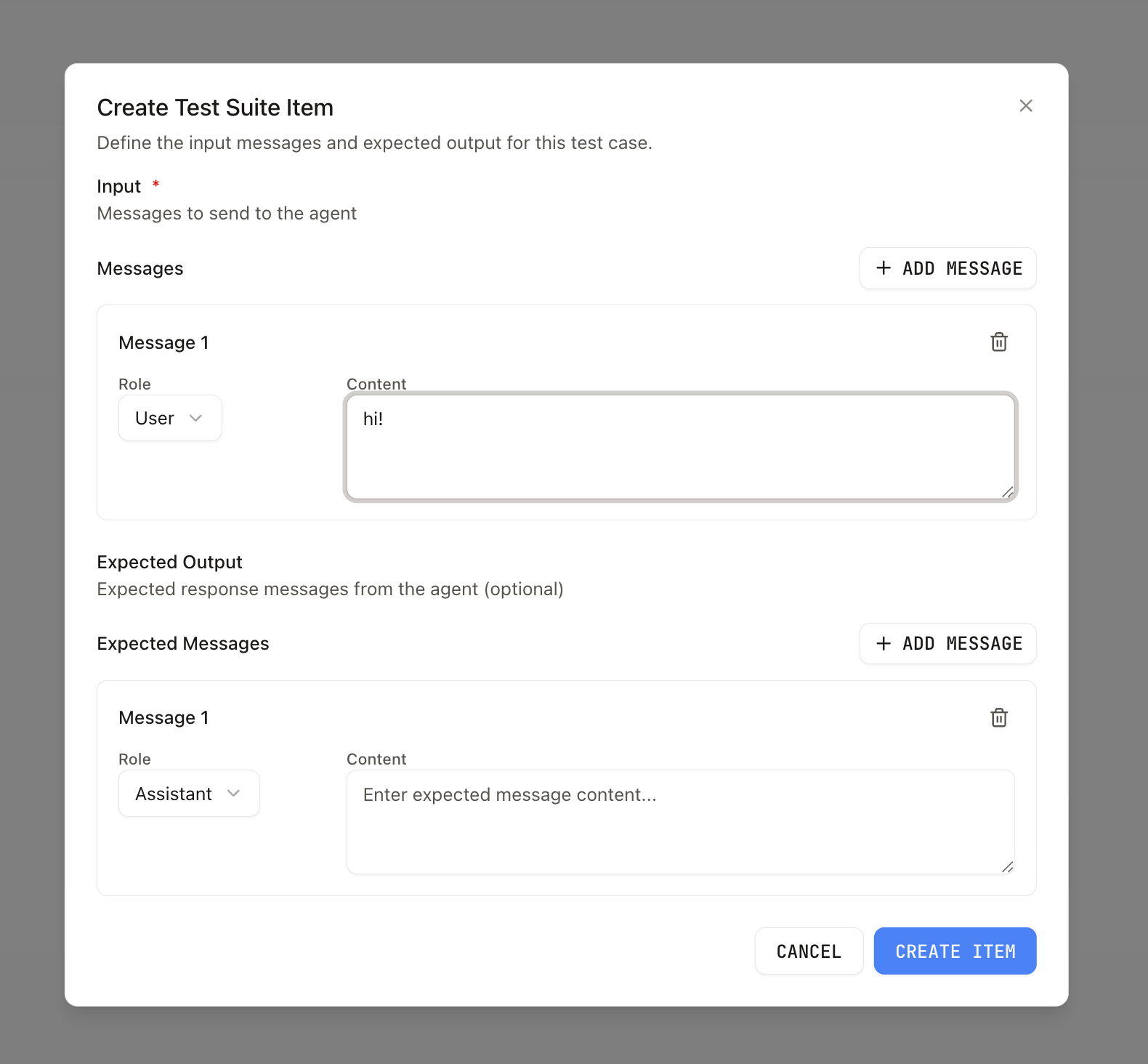
Each item has:
- Input — JSON object with a
messagesarray. Each message has arole(user,assistant, orsystem) andcontentin the same shape as chat messages elsewhere in the product (for exampletextstrings, orpartsfor richer content). This is what the agent sees when the item is run. - Expected output (optional) — JSON array of messages with the same role/content shape. Use it to record the reference reply you care about; evaluators or your own tooling can compare model output to this.
Bulk upload from CSV
From the Items tab on a test suite, choose Upload CSV to create many items at once. The file must be UTF-8 and include a header row.
Recognized headers (case-insensitive):
- input (required)
- expectedOutput (optional)
Each cell can contain either:
- Plain text — a single-turn input becomes
{ messages: [{ role: 'user', content: '<text>' }] }, and a plain-text expected output becomes[{ role: 'assistant', content: '<text>' }]. - JSON — paste the full
input/expectedOutputshape directly when you need multi-turn conversations, system prompts, or structuredpartscontent.
Rows with missing input or invalid JSON are skipped and reported before upload so you can fix them and re-try. Successfully parsed rows are sent to POST .../dataset-items/{datasetId}/items/bulk in a single request.
Agents
You can link agents to a test suite so you can filter or scope which agents are associated with that suite (for example when choosing who runs the items). Run configurations still declare which agents actually execute a given run.
Run configurations and runs
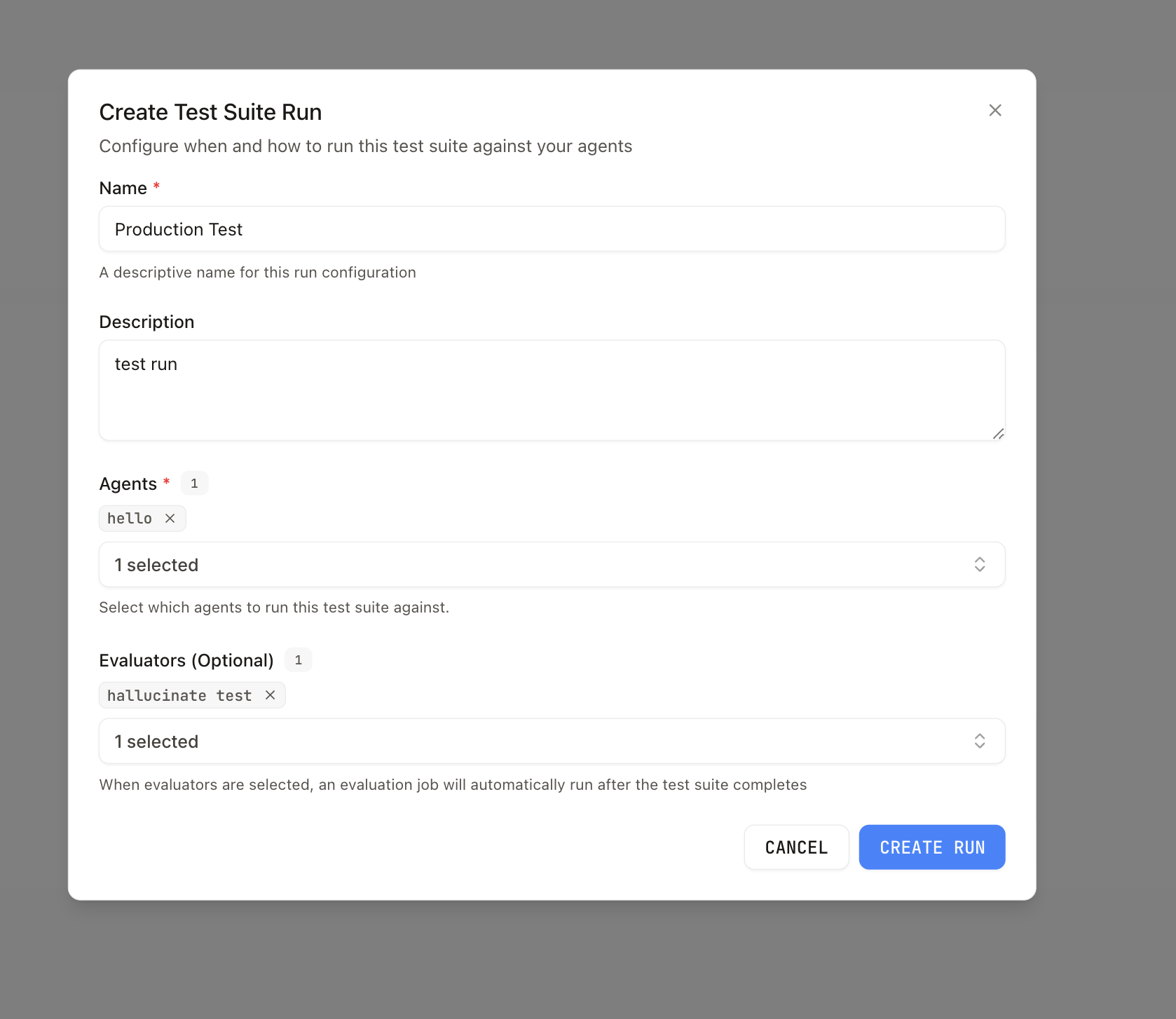
A run configuration ties a test suite to:
- One or more agents that will each process every item (each item × agent produces a run invocation).
- Optional evaluators to run on the resulting conversations.
Create a run configuration from the test suite detail page (Runs tab). When you start a run, the platform creates a test suite run and processes items. You need at least one item and at least one agent on the configuration before a run can start.
Open a run to see per-item invocations, conversation links, and evaluation output when evaluators are configured.
Rerun a past run
Each row on the Runs tab has a Rerun action, and the run detail page exposes a Rerun button in the header. Triggering a rerun creates a new row in the runs table using:
- The current items in the test suite (any items you've added since the source run are included; deleted items are skipped).
- The same run configuration (agents, name) as the source run.
- The same evaluators that were attached to the source run, unless you pass overrides.
The rerun endpoint is POST .../dataset-runs/{runId}/rerun. The response includes the new datasetRunId so you can navigate straight to the in-progress run. Runs that were not created from a run configuration can't be rerun — the button is disabled for those rows.
Programmatic access
| Surface | Use for |
|---|---|
| Evaluations API reference | CRUD test suites and items, agent links, run configs, trigger runs (POST .../dataset-run-configs/{id}/run), list runs and results |
| TypeScript SDK: Evaluations | EvaluationClient helpers (listDatasets, createDataset, createDatasetItem, createDatasetItems, etc.) |
Listing test suites supports an optional agentId query parameter on the list endpoint to restrict results to suites linked to that agent.
Related
- Evaluations in Visual Builder — Evaluators, batch evaluations over conversations, and continuous tests
- Evaluations API reference
- TypeScript SDK: Evaluations