Tool approvals in Visual Builder
Copy page
Configure tool approval requirements in the Visual Builder to pause execution until a user approves the request.
Tool approvals let you mark specific tools as requiring user approval before execution. When an agent tries to run a tool that needs approval, execution pauses until your client approves or denies the request.
This is useful for tools that can make destructive changes, access sensitive data, or perform actions that should be reviewed by a human before proceeding.
MCP tools
For MCP servers, you can configure approval on individual tools or bulk toggle approval for all enabled tools.
Open the MCP server node
In the Agent Builder canvas, click on an MCP server node that is connected to a Sub Agent. This opens the node editor in the right panel.
Locate the Tool Configuration section
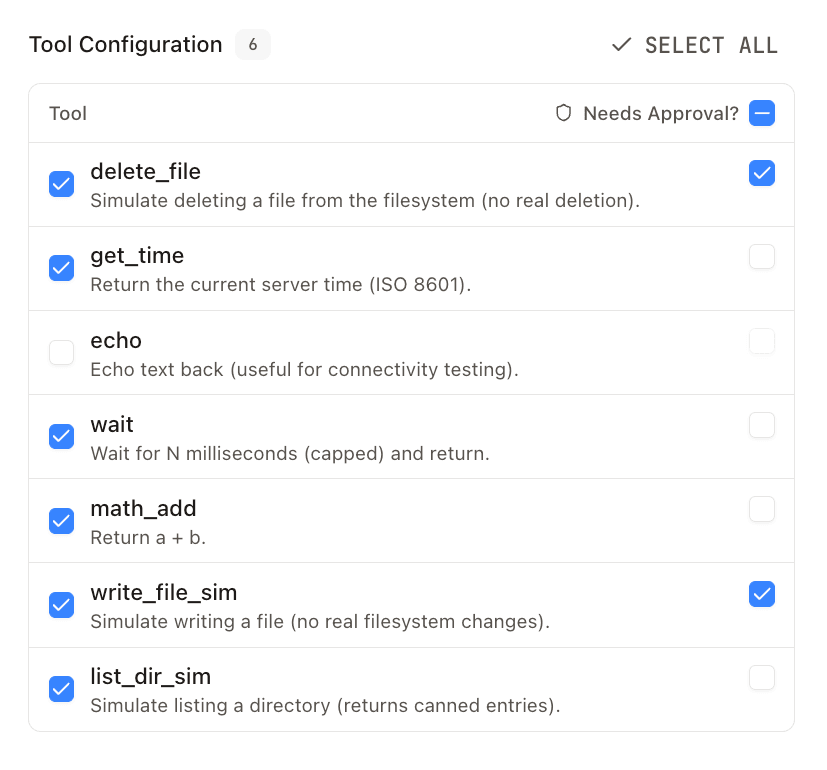
Find the Tool Configuration section. This displays all available tools from the MCP server with checkboxes to enable/disable each tool.
Enable approval for individual tools
Each enabled tool has a Needs Approval? checkbox on the right side. Check this box for any tool that should require user approval before execution.
Bulk toggle approvals
Use the checkbox in the Needs Approval? header to toggle approval for all enabled tools at once:
- Unchecked: No enabled tools require approval
- Indeterminate (dash): Some enabled tools require approval
- Checked: All enabled tools require approval
Clicking the header checkbox toggles between requiring approval for all enabled tools or none.
Save your changes
Click Save to apply your tool approval configuration.
Only enabled tools (checked in the tool list) can have approval configured. Disabled tools are not available to the agent and don't have approval settings.
Function tools
For function tools, approval applies to the entire tool since each function tool node represents a single tool.
Open the function tool node
In the Agent Builder canvas, click on a function tool node that is connected to a Sub Agent. This opens the node editor in the right panel.
Enable the Require approval setting
Scroll to find the Require approval checkbox. Check it to require user approval before this function tool executes.

Save your changes
Click Save to apply your changes.
Runtime behavior
When a tool with approval enabled is invoked:
- The agent pauses execution and emits a
tool-approval-requestevent in the response stream - Your client UI displays the approval request to the user (tool name, inputs, etc.)
- The user approves or denies the request
- If approved, the tool executes and the agent continues
- If denied, the agent receives a human-readable denial reason string (or a default message if no reason was provided), allowing it to understand why the request was denied and adapt its behavior (for example, trying a different approach or asking a clarifying question)
Best practices
- Enable approval for destructive operations: Tools that delete data, modify configurations, or make irreversible changes should require approval
- Consider data sensitivity: Tools that access or expose sensitive information may benefit from approval gates
- Balance UX and safety: Too many approval prompts can degrade user experience; reserve approval for truly impactful actions
- Test the approval flow: Verify your client properly handles approval requests before deploying to production
Handling approvals in your client
For details on implementing the approval flow in your client application:
- Tool Approvals (TypeScript SDK) — Configure approvals in code and handle approval responses
- Chat API — API payloads for approval requests and responses
- Custom Tool Approval UI — Replace the default approval card with your own React component using
IkpTool
Related
- MCP Servers — Register and configure MCP servers
- Sub Agents — Connect tools to your agents
- Function Tools — Create custom function tools