Get Started with Inkeep Cloud
Copy page
Get started with Inkeep Cloud
Overview
With Inkeep Cloud, we manage the infrastructure for you so you can focus on building your agents. In this guide, will walk you through the steps to build your first agent in the Inkeep Cloud Visual Builder.
Prerequisites
- An Inkeep Cloud account - if you don't have one, you can sign up for the waitlist
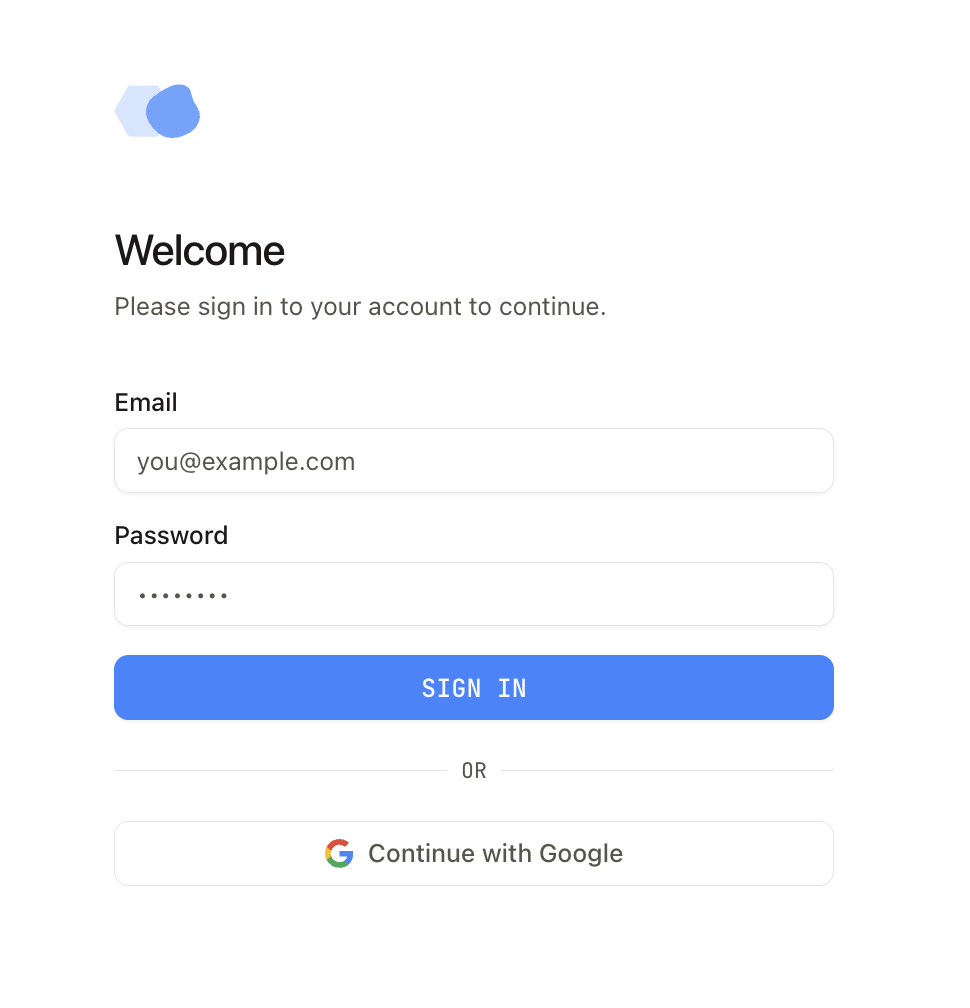
Step 1: Login using your credentials
Step 2: Enter a project
Once you're logged in, you'll be redirected to the Inkeep Cloud project overview page. If you are part of a team, you might see a list of existing projects like this:
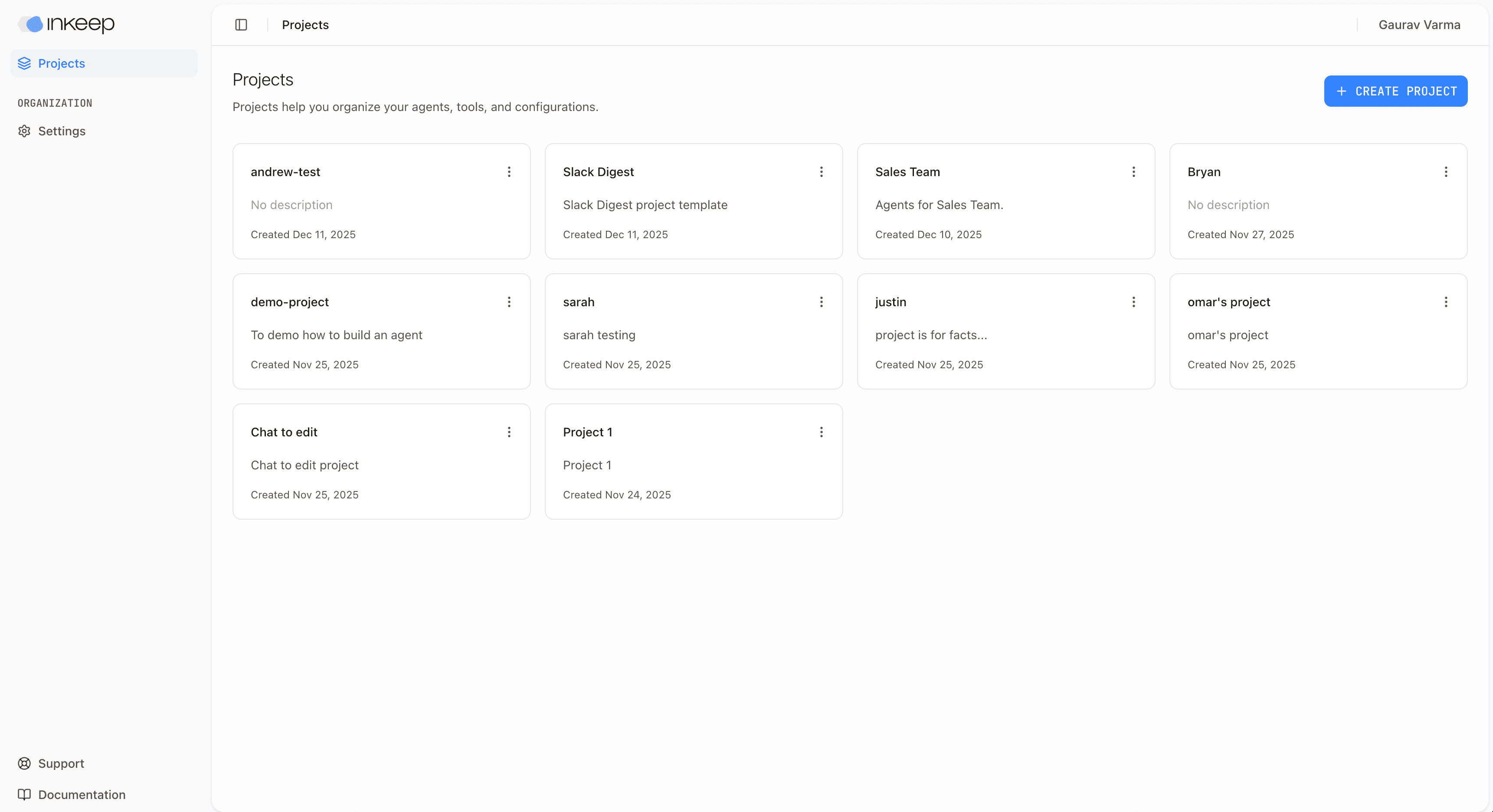
If you are part of a team, click into the project your team has created. If you are not part of a team, you can create a new project by clicking the "Create Project" button.
Step 3: Inspect the project
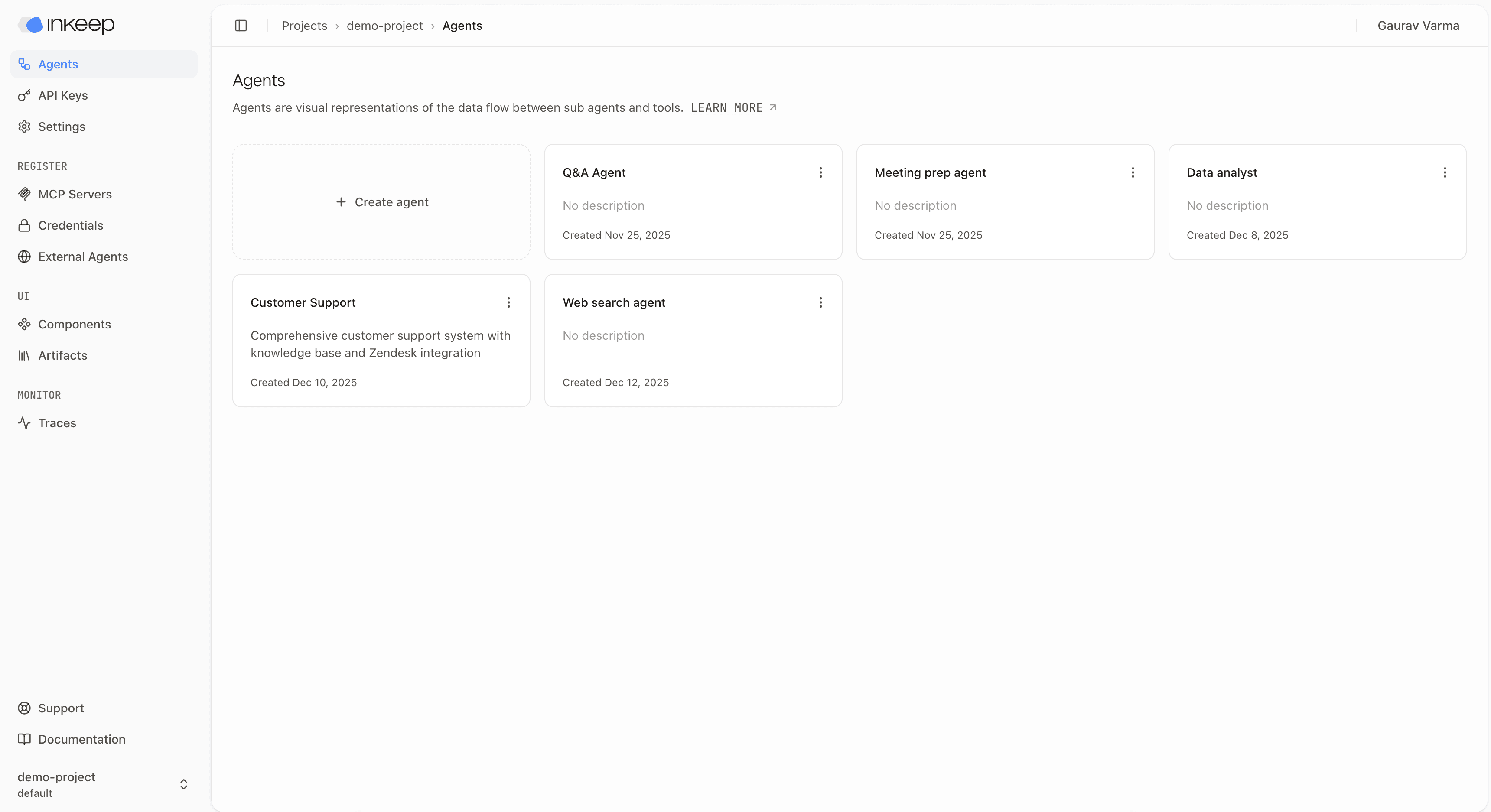
Once you're in the project, you'll see the project overview page. You can see the list of agents that are part of the project.
In the MCP Servers section, you can see the list of MCP servers that are part of the project:
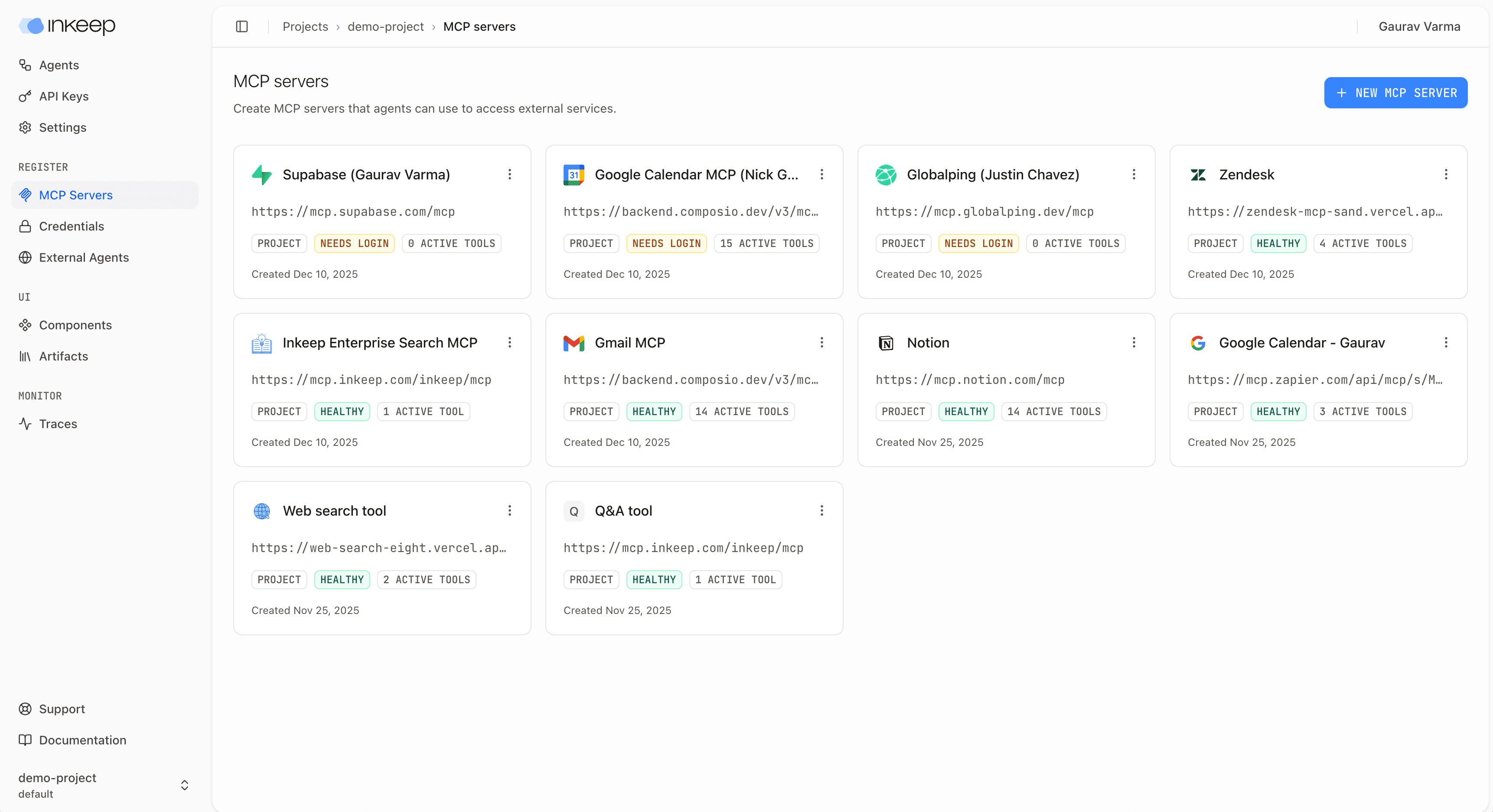
MCP servers are the tools that your agents can use to interact with external APIs and services.
Notice the Inkeep Enterprise Search MCP server, part of Inkeep's Enterprise offering. It allows your agent to connect to 25+ data sources to create a unified knowledge base that your agents can access.
Step 4: Build your agent
Back in the agent overview page, click the "Create Agent" button to create a new agent. Give your agent a name, let's call it "Knowledge agent".
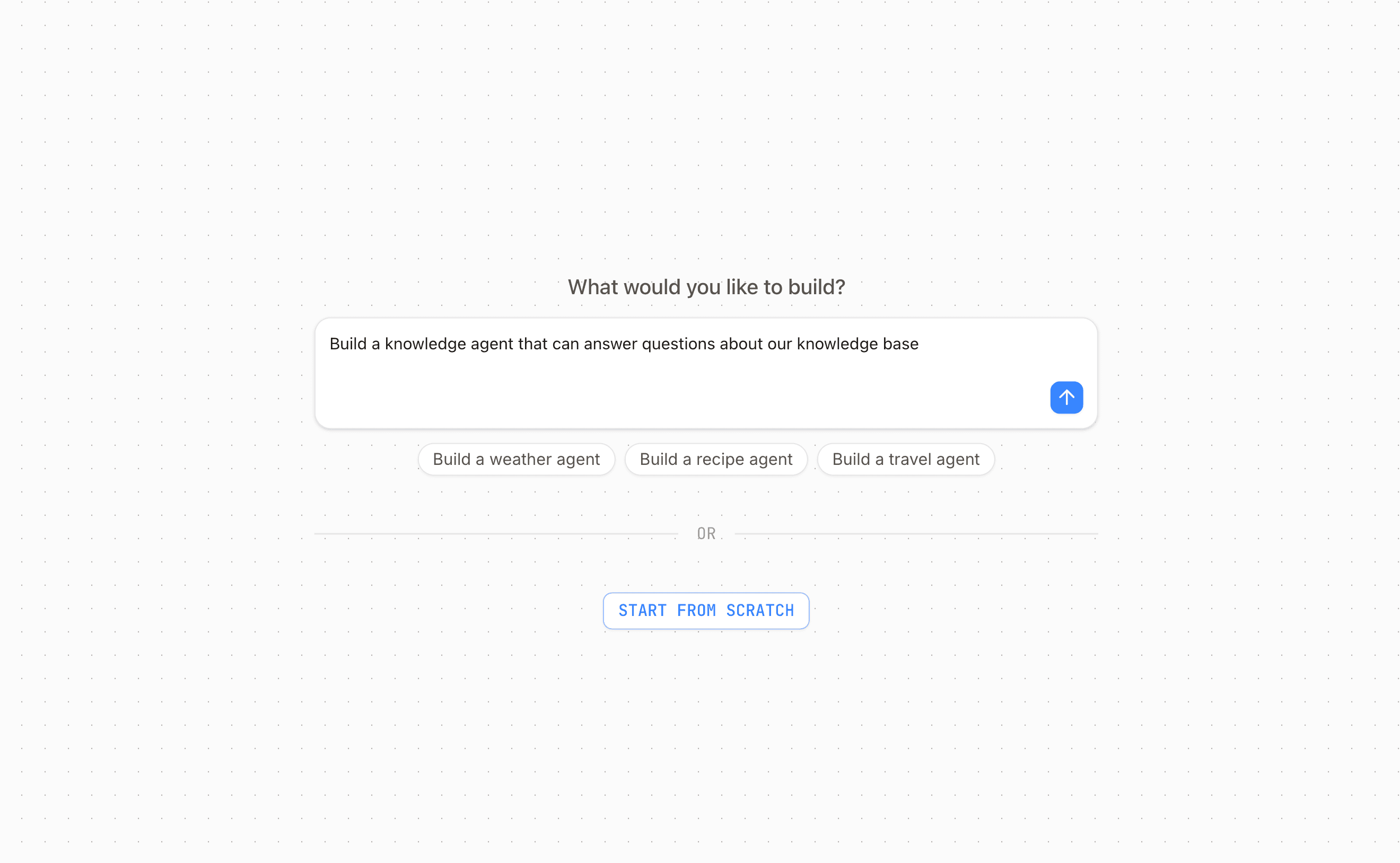
Inkeep will prompt you to build your agent using natural language. Let's ask Inkeep to build a knowledge agent that can answer questions about your knowledge base:
Step 5: Try the agent
Once Inkeep has built your agent, try it out by clicking the "Try it" button.
Step 6: Edit the agent
You can edit your agent by dragging and dropping new sub agents and tools onto the canvas. Here, we'll extend our knowledge agent to use a web search agent if it needs to find more information.